The plain language guide
From mic to
“I can hear it.”
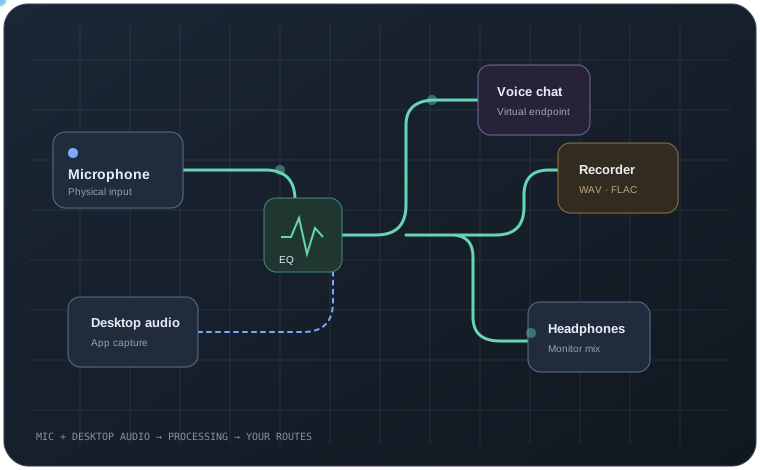
A route is simply a path for sound. Follow these steps to move a microphone through an effect and into an app.
Microphone→Effect→Destination
01 / Get connected
Make your first route.
- Open AudioRouter. Allow device access when Windows asks. Audio starts only after you choose to start a session.
- Add an input. Choose the microphone or audio device you want to hear.
- Add an effect if you like. Connect an EQ, gate, or compressor after the input.
- Add a destination. Choose an output or compatible virtual endpoint.
- Connect the blocks. Drag from the source output to the next tool's input.
- Press Play. Watch the meters. Speak into the mic and adjust levels.
02 / Connect an app
Send sound into a virtual cable.
A virtual cable acts like a wire between apps. One app plays sound into it; another chooses it as an input.
- Install a compatible virtual audio endpoint such as VB-CABLE or Voicemeeter.
- In the source app, choose the cable's playback side as its output.
- In AudioRouter, select the cable endpoint in a supported input or output device node and connect it into your route.
- In the destination app, choose the cable's capture side as its microphone.
- Play audio and check the meters at each step.
Tip: Read device direction carefully. Test with a quiet signal first.
03 / Save a take
Record a branch.
- Add a Recorder node to the part of the route you want to capture.
- Choose a folder and WAV or FLAC.
- Arm that recorder deliberately and check the destination.
- Start the session and begin recording.
- Stop the recorder and open the recording library.
For separate voice and desktop files, put a recorder on each branch.
04 / Go beyond the canvas
Connect a developer tool or assistant.
Open the API tab to start the local HTTP listener and manage its token. Open the MCP tab for Codex or Claude Code setup instructions.
- For scripts and apps, use the CLI or local HTTP API.
- For an MCP client, add the server command shown in the MCP tab.
- Enroll the client and start with read-only access.
- Grant extra permissions only when you want the integration to act.
05 / Quick fixes
If you can't hear sound.
- Check every connection. An unconnected block gets no audio.
- Check the device. Confirm it is plugged in and the app uses the expected endpoint.
- Follow the meters. Find where the signal disappears.
- Check mute and bypass. Muted silences; bypass skips the effect.
- Check the app's own input setting. AudioRouter doesn't secretly change app choices.
- Open Logs if there is a device or plugin error.
A missing microphone stays silent. AudioRouter will not quietly swap in another input.