Discord and OBS

Your processed voice,
in the apps you use.

AudioRouter cleans up your microphone and sends it to a virtual cable. Discord and OBS then record that cable instead of your raw microphone. The Apps tab checks that each app really uses the devices your route expects, and tells you exactly what to change when it does not.
Asks before any changeNothing to install in DiscordChecks on focus
Needs AudioRouter 0.0.22 or later (get the app) and a virtual cable such as VB-Cable.
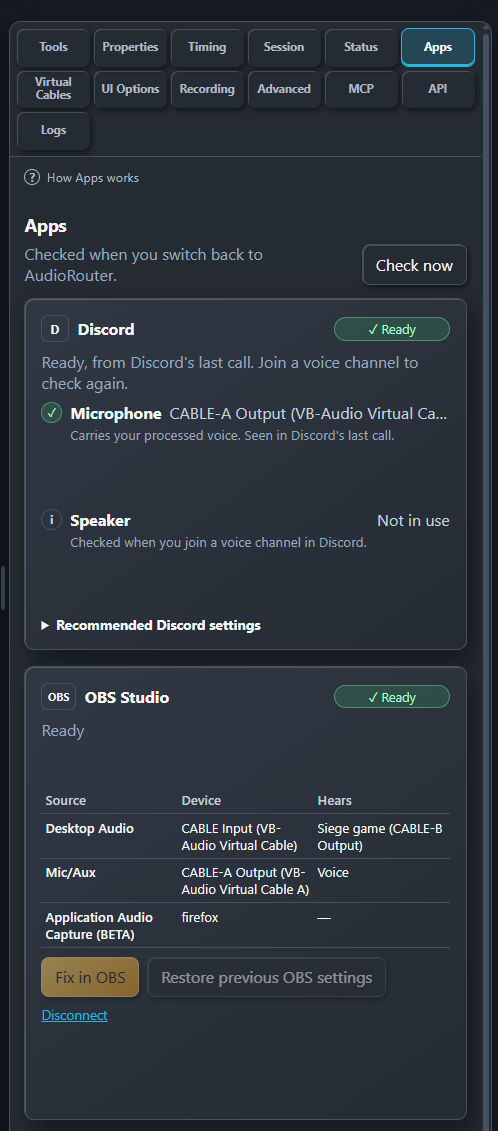
AudioRouter's Apps tab: the Discord card is Ready, with CABLE-A Output as the microphone seen in Discord's last call; the OBS Studio card is Ready, with Desktop Audio on CABLE Input hearing the Siege game, Mic/Aux on CABLE-A Output hearing the voice, and a Firefox application capture
The Apps tab with Discord out of a call and OBS connected.
How a virtual cable works

Play into one end. Record from the other.

A virtual cable is a pair of Windows devices. Whatever plays into CABLE Input comes out of CABLE Output, where another app can record it. AudioRouter plays your processed voice into the Input; Discord and OBS record the Output.

1

Route your microphone

In AudioRouter, connect your microphone through the tools you want (Denoise, EQ, Compressor) to a Physical Output set to a cable's Input, for example CABLE-A Input.

2

Choose the cable in the app

In Discord or OBS, choose the same cable's Output, for example CABLE-A Output, as the microphone.

3

Let AudioRouter check

Open Apps in AudioRouter's right sidebar. It shows whether each app uses the right device, and what to change if not.

Discord

Know that your call hears the right voice.

AudioRouter asks Windows which devices Discord is using, and compares them with your route. The Discord card shows Ready, Check, Waiting (Discord is open but not in a voice channel) or Not running. Out of a call, Windows still reports the devices Discord used in its last call, so the card can show Ready from that call; it never warns about a device Discord is not using right now. A Discord chip next to "Audio running" shows the same state while your session uses a voice cable or captures Discord.

  1. Send your microphone to a virtual cable in AudioRouter, as above. If your session does not do that yet, the Apps tab offers Set up a virtual cable.
  2. In Discord, open User Settings › Voice & Video. Set Input Device to the cable's Output, for example CABLE-A Output.
  3. Join a voice channel: Discord only uses the microphone during a call. Later, out of a call, the card confirms the microphone from that call for as long as Discord stays open.
  4. Switch back to AudioRouter. The Apps tab checks again by itself; Check now checks at once.

What it checks

  • Your microphone. Discord should record the cable that carries your processed voice, not your raw microphone. If it records the raw one, people hear you without AudioRouter's effects.
  • Hearing themselves. If Discord plays into the cable that carries your voice, the call comes back as your microphone and people hear themselves.
  • The 16-channel side. VB-Cable also lists "CABLE In 16ch". Windows lets only one side of a cable be used at a time, so Discord on the 16ch side can block AudioRouter's output.
  • Hearing Discord twice. If AudioRouter captures Discord and sends it to your headphones while Discord also plays there, you hear every voice twice.

Each problem names the device to choose. Show me how gives the exact Discord menu, and Copy device name copies the name so you can find it in Discord's list.

Recommended Discord settings. If AudioRouter's Denoise cleans your microphone, set Discord's Noise suppression to None to avoid cleaning it twice. If you use AudioRouter's Compressor, turn off Discord's Automatic gain control to avoid two level controls fighting. Turn off Echo cancellation only with headphones; keep it when speakers can feed back into the microphone. AudioRouter cannot read these settings, so it shows them as advice.
OBS Studio

Stream the voice your viewers should hear.

OBS records audio from its own sources: Mic/Aux and Desktop Audio in Settings, plus any Audio Input or Application Audio capture in your scenes. AudioRouter reads those sources through OBS's own WebSocket server, which you turn on in OBS under Tools › WebSocket Server Settings, then Connect in the OBS card. For each source it shows the device and what that device hears through your route, and flags:

  • A microphone source that records your raw microphone instead of the voice cable.
  • Desktop Audio that already contains your microphone, so your voice is on the stream twice.
  • A source on the 16-channel side of a cable AudioRouter uses.

Fix in OBS shows each change before it is made, applies it only after you confirm, and keeps the previous settings so Restore previous OBS settings can put them back. While OBS is closed, the card shows its last saved setup.

Set it up by hand

  1. In OBS, open Settings › Audio.
  2. Set Mic/Auxiliary Audio to your voice cable's Output, for example CABLE-A Output. Disable any other source that records your raw microphone.
  3. Set Desktop Audio to the device whose sound the stream should hear. If your route also plays your microphone into your headset so you hear yourself, recording that headset streams your voice twice. Either stop sending your voice to the headset, or set Desktop Audio to a cable AudioRouter sends game audio to and add an Application Audio Capture for each other app the stream should hear, such as your browser.
  4. Speak and watch OBS's Audio Mixer: only the voice cable's meter should move.
Your apps stay yours

AudioRouter reads. You decide.

For Discord, the Apps tab only reads what Windows reports about devices in use. It never changes Discord, your games or Windows settings, and it does not need a Discord login or plugin. It changes an OBS source only when you confirm Fix in OBS. It never sends anything off your PC.

When Windows has not reported something yet, for example before you join a call, AudioRouter says it is waiting instead of guessing.

More